
Smartphone Display Color Calibration: How to Get Perfect Colors on Your Phone
Smartphone displays have come a long way in terms of color accuracy, but even the best devices can sometimes be off in terms of how they display colors. Whether you’re a photographer, designer, or simply a user who cares about accurate colors on your device, smartphone display color calibration is an essential skill to master. In this guide, we’ll dive into what display calibration is, why it matters, and how to do it yourself for the best possible screen performance.
What Is Smartphone Display Color Calibration?
Display calibration is the process of adjusting a device’s screen to display colors as accurately as possible. This is crucial for tasks where color precision matters, such as photo editing, graphic design, or video production. While most modern smartphones come pre-calibrated at the factory, there are often small discrepancies that can make a significant difference.
Color calibration adjusts things like brightness, contrast, white balance, and color saturation. By fine-tuning these settings, you ensure that what you see on the screen is a true representation of the colors in the real world.
Why Is Smartphone Display Color Calibration Important?
For casual users, smartphone color calibration might not seem like a big deal. However, for professionals or anyone working with color-critical tasks, an uncalibrated display can lead to misleading images and inaccurate editing. Here’s why it matters:
-
Improved Color Accuracy: Proper calibration ensures that your phone’s display shows true-to-life colors.
-
Enhanced Visual Experience: Better calibration leads to richer, more vivid visuals that are easy on the eyes.
-
Professional Quality: If you’re a designer, photographer, or artist, accurate colors are essential for producing work that looks good on all devices.
-
Consistency Across Devices: If you use multiple devices for work, color calibration ensures consistency between your smartphone, computer monitor, and tablet.
How to Calibrate Your Smartphone Display
You don’t need to be an expert to calibrate your smartphone’s display. With a few simple steps, you can get a more accurate color representation. There are several methods to achieve this:
1. Use Built-In Calibration Tools
Many smartphones, especially high-end models, come with built-in tools that let you adjust color settings directly from the settings menu. Here’s how to do it on popular devices:
-
Samsung Galaxy: Go to Settings > Display > Screen Mode. Here, you can choose between Vivid and Natural settings, or customize the RGB balance.
-
Google Pixel: Navigate to Settings > Display > Advanced > Colors and select from options like Natural, Boosted, or Adaptive.
-
Apple iPhone: The iPhone automatically manages color accuracy, but you can adjust the display settings for True Tone and Night Shift to improve overall screen comfort.
These tools will help you get the right balance of color on your device without needing any third-party apps.
2. Use Calibration Apps
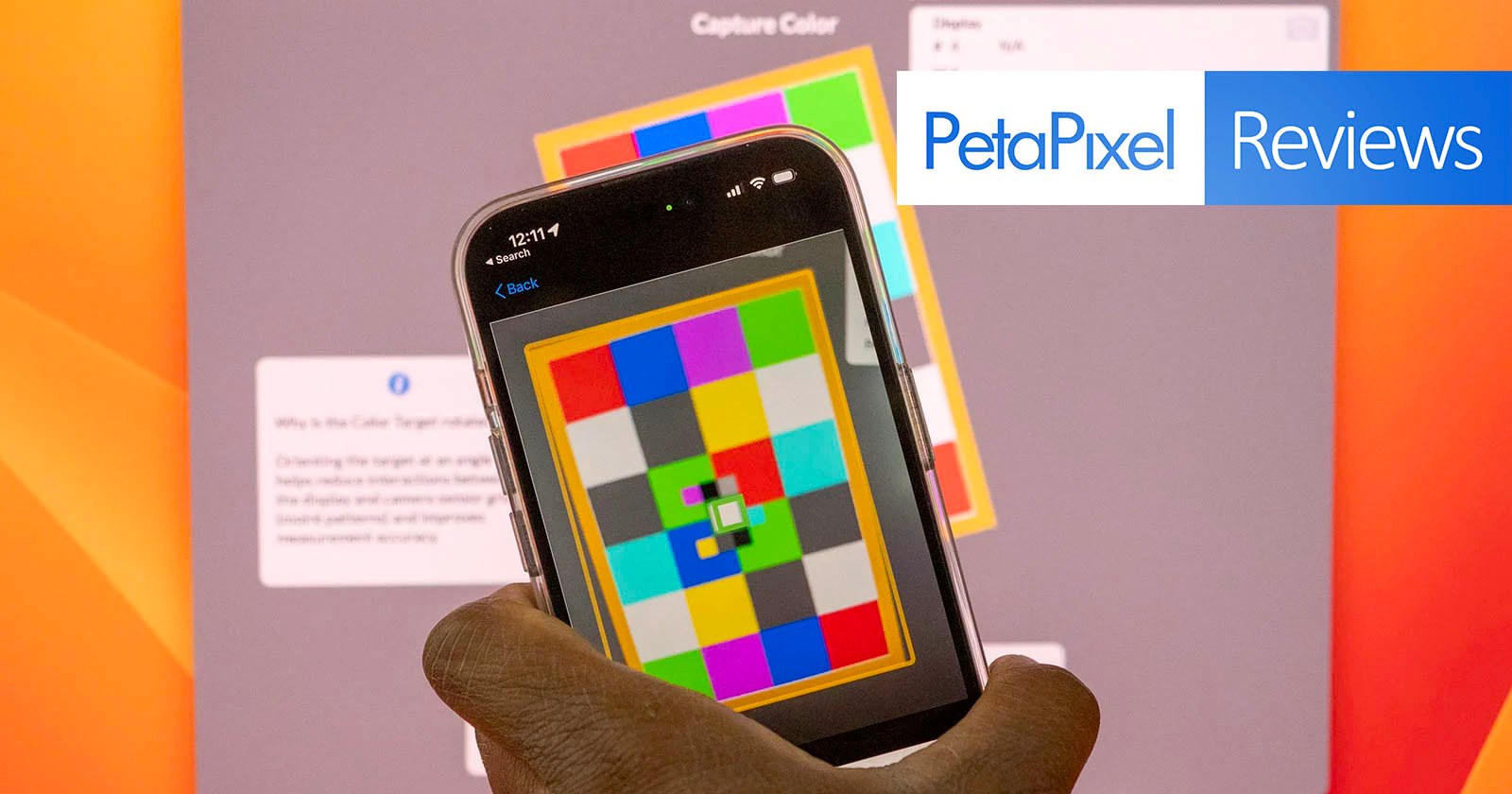
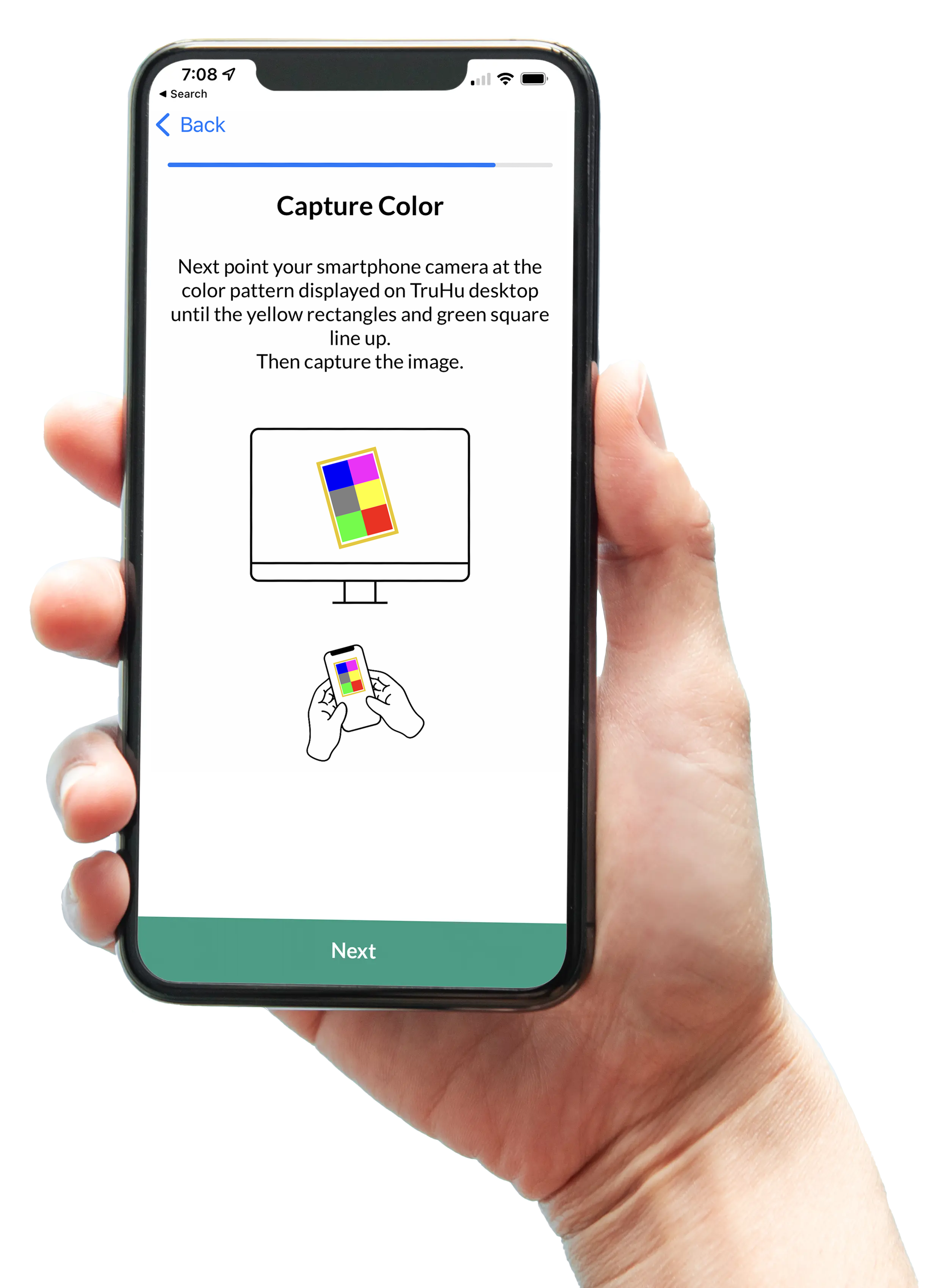
If you’re not satisfied with the built-in options, you can turn to apps specifically designed to calibrate your display. One of the best calibration tools available is TruHu, which offers a simple and effective way to fine-tune your smartphone’s screen for better color accuracy.
-
TruHu App: TruHu allows you to measure and calibrate your smartphone’s color output using your phone’s camera. It takes into account various factors like brightness and contrast to provide you with a more accurate display. Learn more about TruHu here.
3. Manual Calibration Using Test Patterns
Another method is to use test patterns or color calibration charts available online. These patterns help you assess things like black levels, white balance, and color saturation. Here’s how you can do it:
-
Open a test pattern image on your phone (search for “phone color calibration test patterns”).
-
Adjust the settings on your phone’s display to match the test pattern as closely as possible.
-
Pay attention to how your display handles shadows, highlights, and color gradients. Aim to make the display as accurate as possible.
While this method requires a little more manual effort, it can be a helpful DIY approach for those who want a more customized calibration.
Benefits of Smartphone Display Calibration
Calibrating your smartphone display doesn’t just make it look good—it can improve your overall experience. Here are a few key benefits:
1. Accurate Colors for Photo and Video Editing
If you edit photos or videos on your smartphone, you need to know that the colors you see are accurate. A well-calibrated display helps ensure that your edits will look the same on other screens.
2. Enhanced Visual Quality
After calibration, you’ll notice a difference in how colors pop on your screen. This makes everything from gaming to streaming videos a more immersive experience.
3. More Comfortable Viewing
Proper calibration can also improve eye comfort. By adjusting things like brightness and contrast, your screen will be easier on your eyes during extended use.
Common Calibration Problems and How to Fix Them
Even after calibrating your display, you might encounter issues that need attention. Here are some common problems and their solutions:
1. Too Bright or Too Dark Display
If your screen is too bright or too dark, it could be due to the brightness settings being off. You can manually adjust the brightness from the settings menu or enable Auto-Brightness for better adjustment throughout the day.
2. Color Shift or Off-Color Screen
Sometimes, colors may look washed out or skewed toward a particular shade. This is often due to improper white balance or color temperature. Use the manual settings or an app like TruHu to adjust these parameters until the colors look natural.
3. Inconsistent Colors Across Different Apps
Certain apps might not display colors consistently, even after calibration. This could be due to app-level issues or how the app handles color profiles. In these cases, updating the app or resetting its display settings may help.
FAQs
1. How often should I calibrate my smartphone display?
Calibration can be done as needed, but it’s recommended to recalibrate your display if you notice significant color shifts or if you’re working on color-sensitive tasks.
2. Does color calibration affect battery life?
No, calibrating your display doesn’t have a significant impact on battery life. However, adjusting brightness settings can help conserve battery.
3. Can I calibrate my smartphone screen without using an app?
Yes, most smartphones offer built-in calibration tools that allow you to adjust color settings directly from the settings menu. However, using an app like TruHu can provide more precise results.
4. Is display calibration only necessary for professionals?
While professionals working in design or photography will benefit the most from a calibrated display, anyone who cares about visual quality can improve their experience by calibrating their smartphone screen.
Conclusion
Smartphone display color calibration is an easy and effective way to improve the accuracy and overall quality of the visuals on your device. Whether you’re a photographer, developer, or just someone who loves high-quality visuals, calibrating your screen ensures that the colors you see are true to life. By using built-in tools, third-party apps like TruHu, or manual calibration methods, you can easily adjust your smartphone’s display to perfection.
For those who need consistent, accurate color reproduction, calibration is a small effort that can yield big results. Take the time to calibrate your display, and enjoy a more vibrant, accurate viewing experience!
Explore more on how to get the most out of your smartphone camera settings for professional-level editing and photography!